Fuel Surcharge w/c 16th February 2026
The fuel surcharge for this week is 4.78%. This is based on a fuel price of 109 pence per litre before VAT.
DRA Forms - ROI
Please be aware that as of 03.01.2023, we are no longer able to send goods to the Republic of Ireland without a signed Direct Representation Authorisation (DRA) form. Goods will be held at PTI Express until a signed DRA form is received and storage charges will apply if the goods remain on hold longer than 1 week. To prevent any delays with regards to future shipments, please contact Customer Services prior to collection to check the relevant DRA form has been received.
Severe Weather Warning - Irish Sea
Please be advised that due to poor weather, there are delays to sailings which will result in deliveries being made late. We will keep you informed of any updates as the situation progresses.
Leaving Goods Safe
Please be advised that goods will not be left safe unless specific instructions are added onto the consignment delivery instructions. If you require goods to be left safe in the event that your customer is not on site, please be sure to add a clear note stating so.
How to use the PTI Website
Our website has been designed to make the following processes quick and simple:- Book a collection
- Create a consignment
- Print labels and manifests
- Maintain an address book
- View POD’s
User name and password
The first step is to request an online account. This can be done by phoning the office and requesting access to our online dispatch system. You will be provided with a username and password so you can log in to the system.Printing Software
The next thing to do is download an up to date version of the software that enables you to print labels and manifests. This can be done via the link below and then following this link Printing Software and clicking on PTI Print by Association V2.If you require help to install and setup the printing software, then please call the office on 01788 542500. Once this has been installed then you are ready to start using the website. The menus are situated across the top of the screen and are used to access the various functions outlined below.
Booking a collection
In order to send a consignment, you must book a collection. Booking a collection will ensure the PTI vehicle collects the goods. If you would like a regular daily collection this can be set up automatically so you don’t need to book a collection every day. You can do this by phoning the office. You will not need to book the collection online if you have arranged a daily collection.When entering the details to book a collection online the collection date will default to the next working day. The system will not let you book a collection on the same day as we cannot guarantee the capacity on the vehicle at short notice. If you require a collection the same day you will need to phone the office.
Click on ‘Book Collection’ and fill in the relevant details. Click the green button labelled ‘Book a Collection’ and you will be provided with a confirmation.
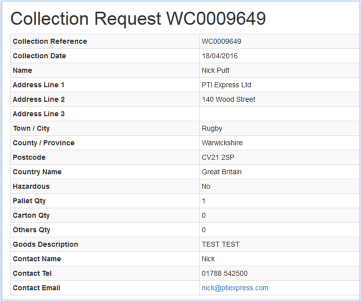
You can also view all collection requests by clicking on ‘Previous Requests’ under the collections menu.
Creating a new consignment
To send good’s you must create a consignment. The consignment provides details of what the goods are and where we need to deliver them to. This system will also create labels if required.On the Consignments menu click ‘Create new consignment’ and you will be presented with a simple form to fill in with the delivery details. Some of the address fields are compulsory and if not completed will be highlighted in red. These are listed below:
|
|
The consignment date will default to today’s date and a consignment number will be automatically generated.
Please ensure the Hazardous box is ticked if the goods require a Dangerous Goods Note (DGN) for road or sea transportation. The DGN must then be emailed to info@ptiexpress.com
The address you have input can be saved to the address book for use again at a later date by clicking ‘Save to Address Book’. You can also select previously saved addresses by clicking on ‘Browse Address Book’.
Once all the details have been completed click ‘Add to Manifest’. This will take you to a summary of the details where you will have the option to print a label. You can then either create another consignment or close the manifest.
IMPORTANT
When all consignments to be collected that day have been entered you must CLOSE the manifest
When all consignments to be collected that day have been entered you must CLOSE the manifest
Closing the manifest
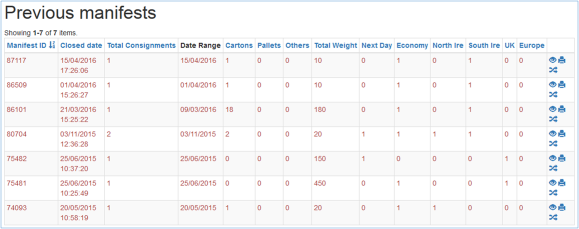
By clicking ‘Close and Print manifest’ you are transmitting the data to PTI to confirm the deliveries. This also prints 2 copies of the manifest, one for you to keep, that the driver will sign, and one for the driver to take so he can confirm what is being collected.You will then be presented with a summary of the day’s consignments (below) and from here you can print the manifests.

You can view or print any previous manifests by clicking on the relevant icon on the right hand side under the ‘Previous Manifests’ menu option.
POD’s
The POD menu allows you to view and request a copy of the proof of delivery for any consignment. POD’s can also be accessed via the ‘View all consignments’ option on the consignment menu. Just click the ‘eye’ icon next to the relevant consignment and you then have the option to view or request the POD.Address Book
The address book menu gives you the option to create and edit delivery addresses. If you have a large data base of customers this can be automatically created by importing a CSV file. There is an example of the file format under the ‘Import Address Book’ option. Alternatively, we can do this for you if you contact customer services and provide a spreadsheet with the address details.Help
The help menu provides useful information regarding the use of the website including the printing software required for labels as well as all necessary contact details.01788 542500, using the Contact Us form or by emailing info@ptiexpress.com.